¶ SkySend
Self-hostable, end-to-end encrypted file and note sharing app. No tracking - the server never sees anything but ciphertext. The app is hosted on files.crumbleworks.eu. If you are seeing this page, you are allowed to use and share files through SkySend. Main usage is to send uncompressed, encrypted, private files through the web. While files are encrypted, any user that was sent a link to the shared files can see and download them. App allows for additional password protection to allow users to upload files through the app, share the link through one channel, and the password through another, allowing for maximum privacy and security of shared files.
¶ Tutorial
¶ Main page
When accessing the site, you are greeted with a standard landing page as shown below:
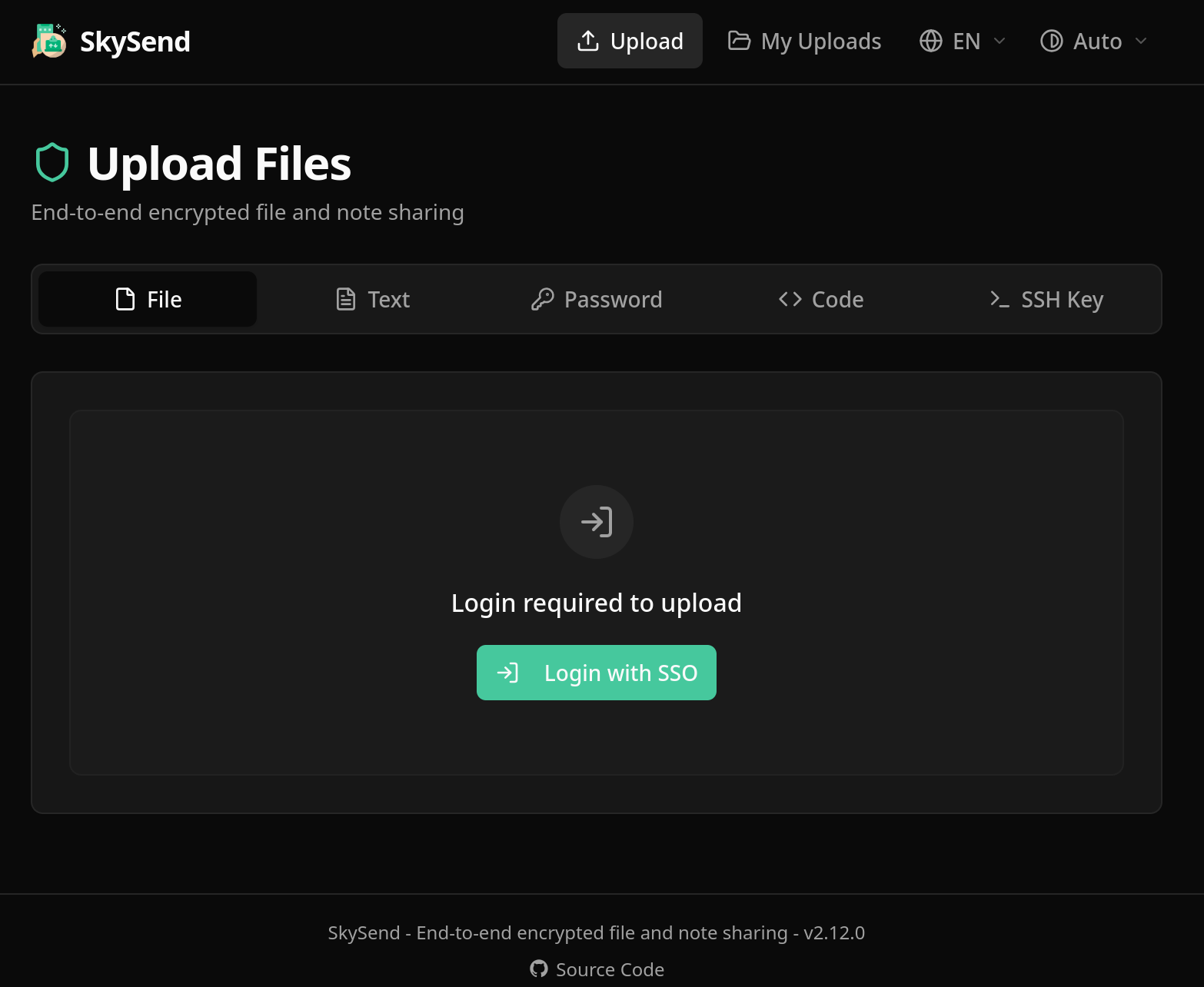
Default option for sharing is "File" tab. It requires SSO login.
Options "Text", "Password", "Code" and "SSH Key" don't require SSO Login.
In top right, you can view site navigation/options. By default it sets you on "Upload" page.
The other options are as follow:
- My Uploads - uploads you made on current device
- Language selector - by default english ("EN"), you can choose another language here
- Theme selector - theme for current site, by default "Auto", can change between dark and light theme
Pressing "Login with SSO" will redirect you to Authentik service.
To upload files to the service you have to login with given username and password.
Downloading files DOES NOT require login. You can share your files with users outside the ecosystem.
¶ File upload and download
¶ File upload
After logging in through Authentik service, the "File" view will change:
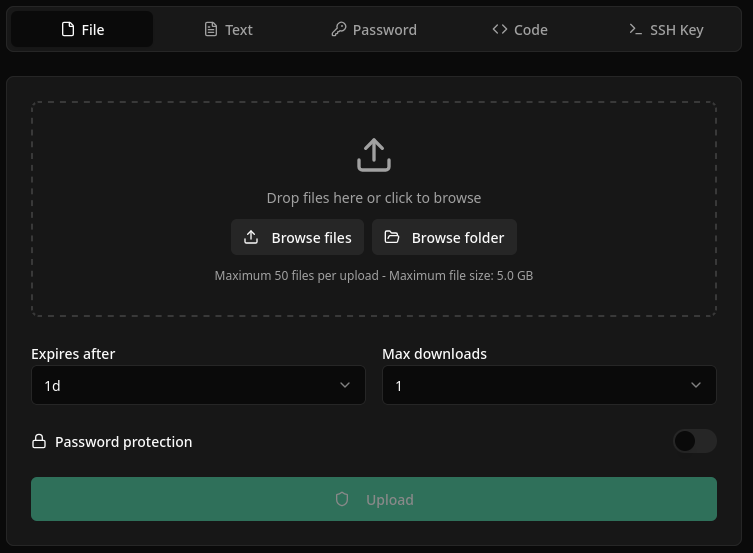
Main box of File view allows you to upload files or whole folders to the app.
Limits are as follow:
- 50 files per upload
- 5 GB max UPLOAD size (all files)
Below file upload area are customizable options for file downloads.
There are set limits on how much time the files are saved on the service, or how many times are files
allowed to be downloaded.
After any of the limits are passed, files are completely erased server-side.
Possible limits for time deletion are:
- 1 minute
- 1 hour
- 1 day
- 7 days
Possible limits for maximum number of downloads are:
- 1, 2, 3, 4, 5, 10, 20, 50, 100
There is also an option for Password protection of file download:

Password protection allows users to additionally protect their uploads with custom passwords.
The purpose of which is two-channel secure sharing.
The idea behind it is to share an url of the upload through one channel, for example e-mail.
Password on the other hand you send through second channel, for example SMS or online messaging.
This creates two channel security where attacker needs access to both channels for upload to be compromised.
So even if person you are sharing the upload gets his email compromised, the attacker can't access
the upload because he doesn't know the password that was shared through uncompromised channel.
The password could also be agreed upon directly, face-to-face or through definitively secure channel,
then that password is used for all future uploads without sending it anywhere.
After writing the password, it is hidden. There are buttons to the right of input box
that allow users to copy input text or to generate new random password.
Password generation allows user to generate completely random passwords:
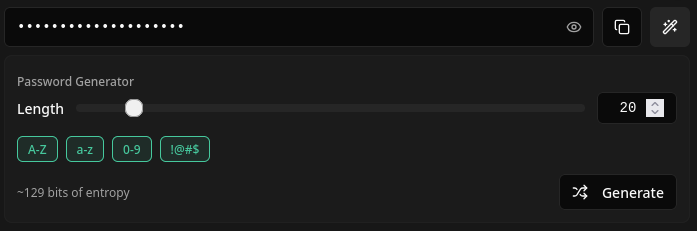
The idea is to generate random password, copy and share it with selected person without actually
showing the password on the screen or inputing any characters to prevent shoulder surfing.
After uploading the files, choosing the right options for you, just press "Upload" button.
The files will upload and you will be greeted with sharing options:
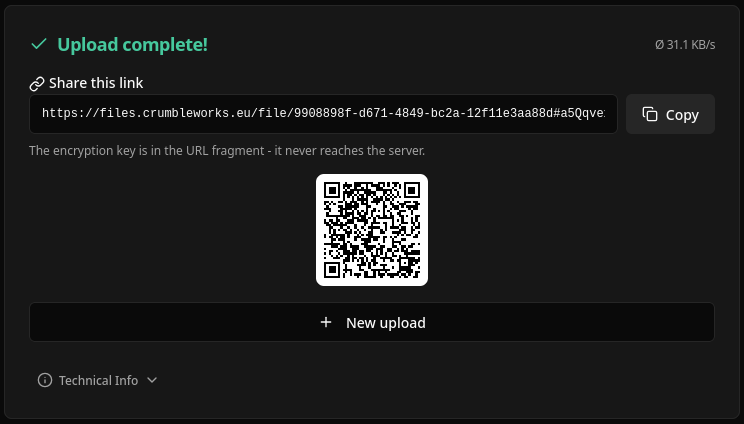
Copy URL and share it with desired person or send them a QR code that contains the URL.
If password protection was enabled, they will also need password to download your upload.
¶ File download
If you received a download URL or are curious how download looks, this is a chapter for you.
The download can be password protected or default, password protected downloads have extra screen.
Initial screen for password protected downloads is:
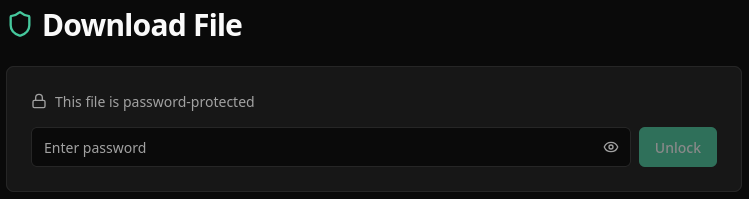
After entering the password you were provided by the uploader, you will arrive at download screen.
The next screen is the same after entering the password and for non password protected downloads.
Download screen shows number of files, file names, their size, how many downloads are left on
the upload, how long until upload expires and total size of the download.
Total size might be smaller than individual files added up because uploads of multiple files are
zipped before uploading.
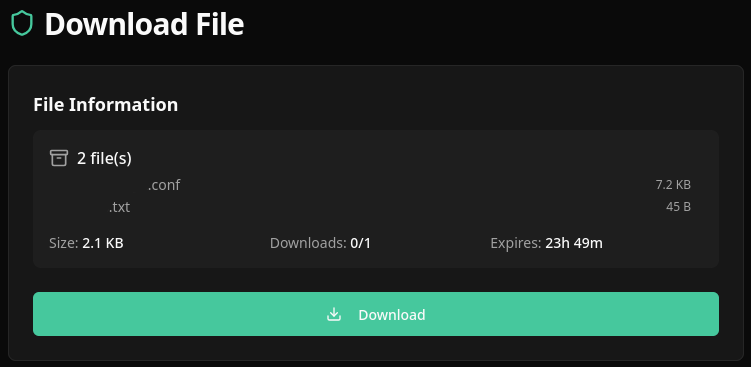
Pressing on "Download" button downloads uploaded files.
If download limit is exceeded, the files on the server are deleted after download and can't
be accessed again.